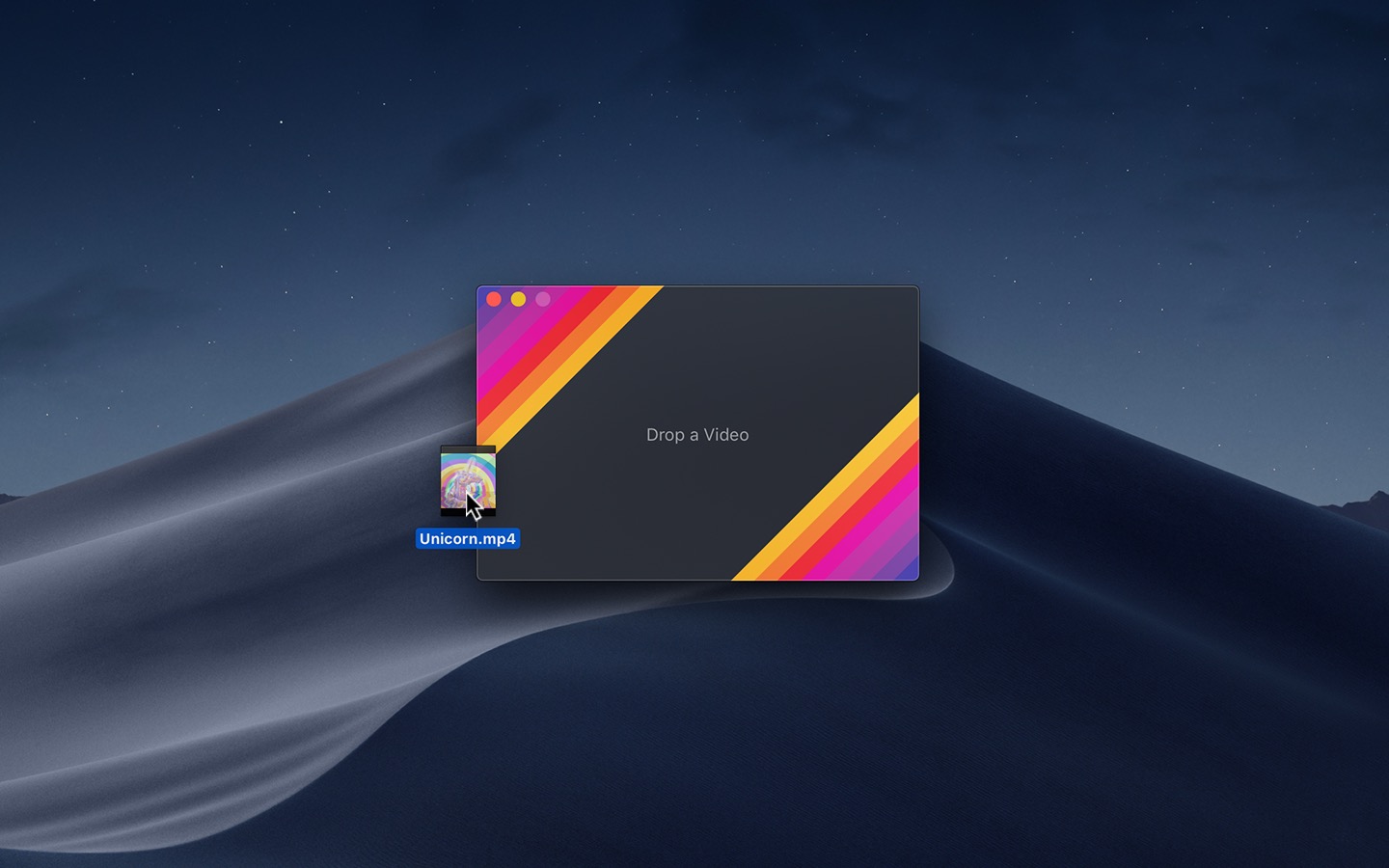
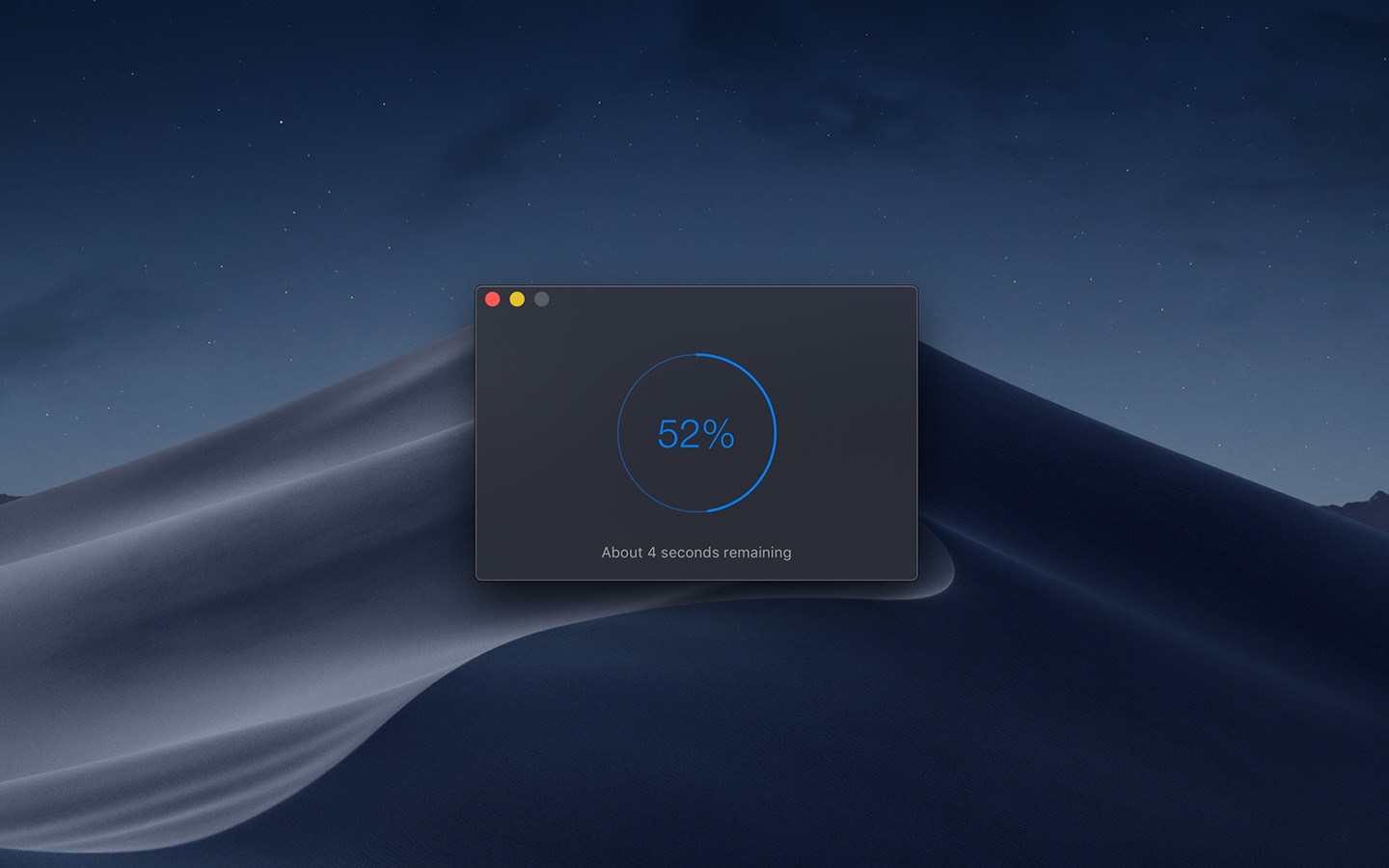
This is a macOS app for the gifski encoder, which converts videos to GIF animations using pngquant's fancy features for efficient cross-frame palettes and temporal dithering. It produces animated GIFs that use thousands of colors per frame and up to 50 FPS (useful for showing off design work on Dribbble).
You can also produce smaller lower quality GIFs when needed with the “Quality” slider, thanks to gifsicle.
Gifski supports all the video formats that macOS supports (.mp4 or .mov with H264, HEVC, ProRes, etc). The QuickTime Animation format is not supported. Use ProRes 4444 XQ instead. It's more efficient, more widely supported, and like QuickTime Animation, it also supports alpha channel.
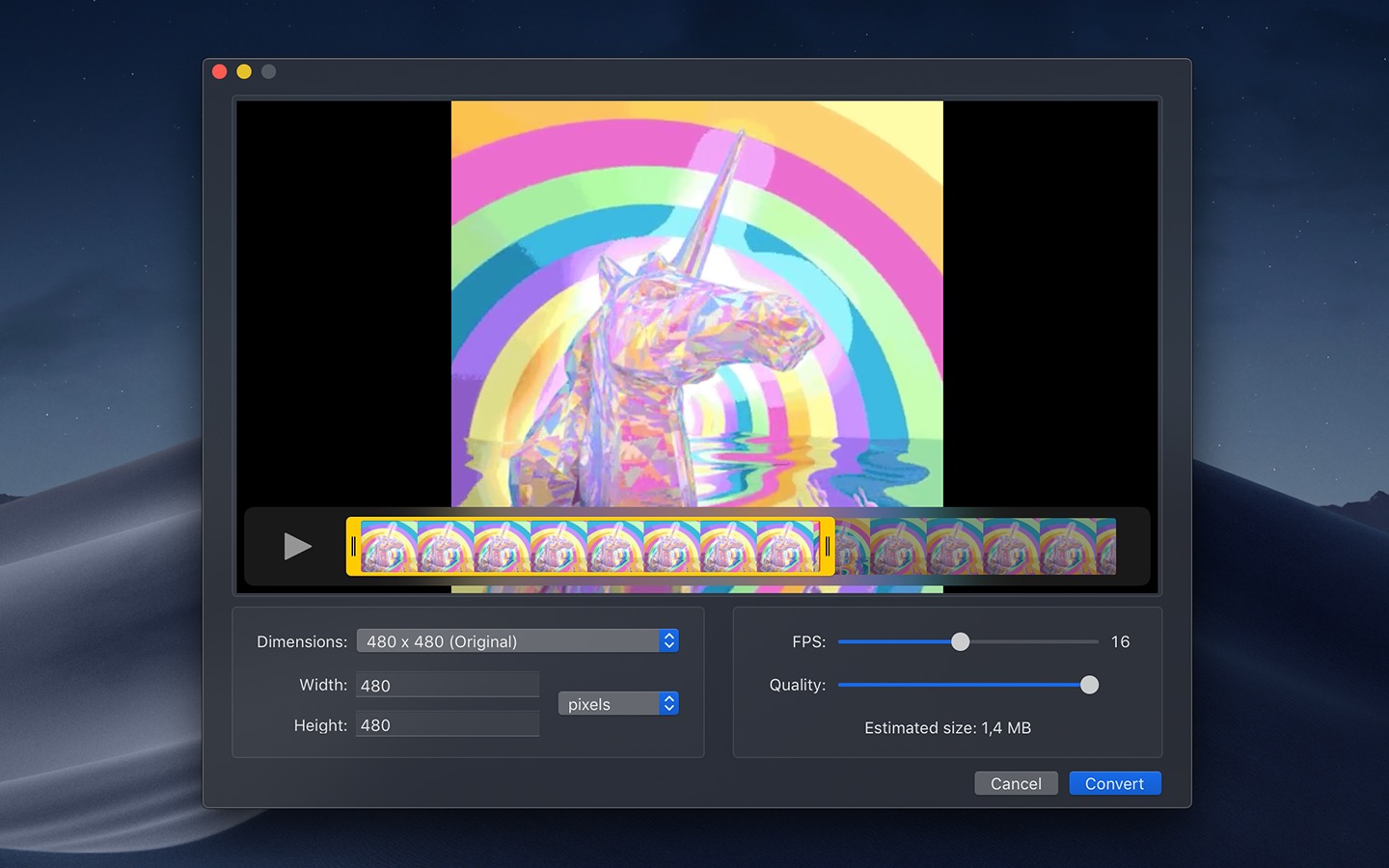
Gifski has a bunch of settings like changing dimensions, speed, frame rate, quality, cropping, looping, and more.
Gifski includes a share extension that lets you share videos to Gifski. Just select Gifski from the Share menu of any macOS app.
Tip: You can share a macOS screen recording with Gifski by clicking on the thumbnail that pops up once you are done recording and selecting “Share” from there.
System service
Gifski includes a system service that lets you quickly convert a video to GIF from the Services menu in any app that provides a compatible video file.
Bounce (yo-yo) GIF playback
Gifski includes the option to create GIFs that bounce back and forth between forward and backward playback. This is a similar effect to the bounce effect in iOS's Live Photo effects. This option doubles the number of frames in the GIF so the file size will double as well.
Tips
Quickly copy or save the GIF
After converting, press Command+C to copy the GIF or Command+S to save it.
Change GIF dimensions with the keyboard
In the width/height input fields in the editor view, press the arrow up/down keys to change the value by 1. Hold the Option key meanwhile to change it by 10.
Screenshots
Building from source
To build the app in Xcode, you need to have Rust installed first:
curl https://sh.rustup.rs -sSf | sh
brew install SwiftLint
xcode-select --install
Tips
Quick Action shortcut
Convert videos to GIFs directly from Finder using the built-in Quick Action shortcut. It works without opening Gifski, and you can create multiple shortcuts with different settings, such as quality, dimensions, or looping, to match your workflow.
How can I run multiple conversions at the same time?
This is unfortunately not supported in the app itself, but you can do it from the Shortcuts app using the shortcut action that comes with the app.
If you know how to run a terminal command, you could also run open -na Gifski multiple times to open multiple instances of Gifski, where each instance can convert a separate video. You should not have the editor view open in multiple instances though, as changing the quality, for example, will change it in all the instances.
Is it possible to convert from WebM?
Gifski supports the video formats macOS supports, which does not include WebM.
You can convert your video to MP4 first with this app.