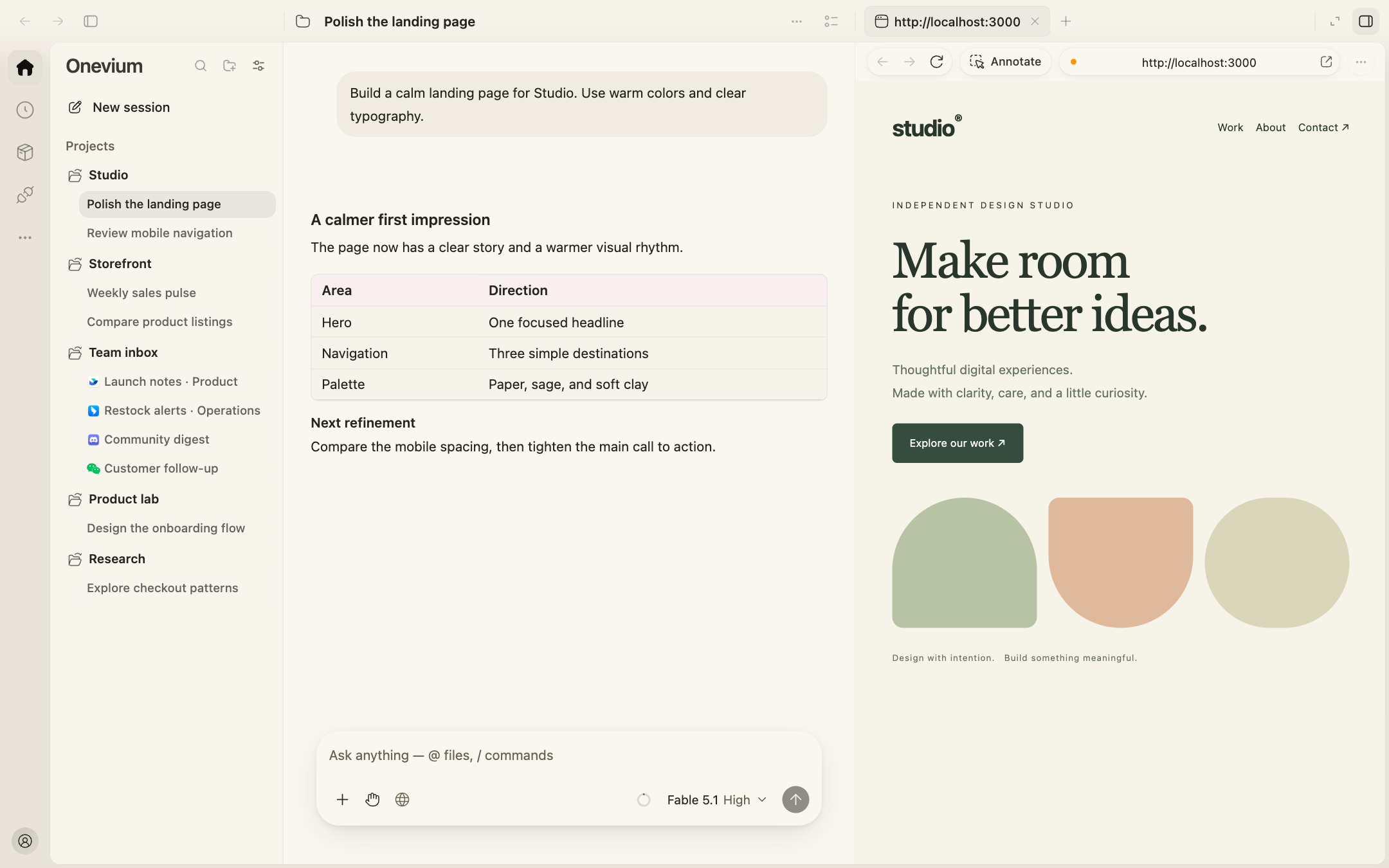
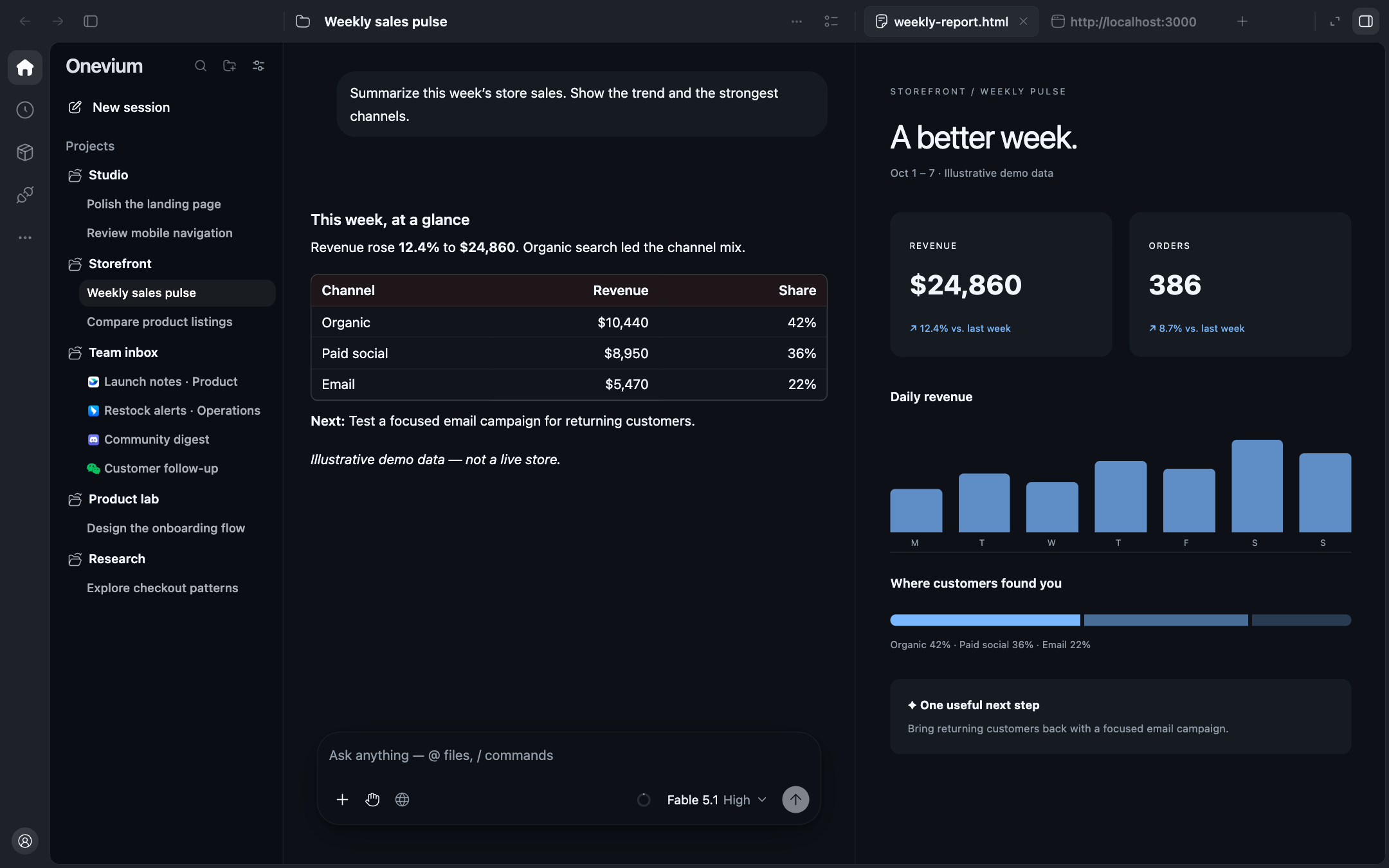
Onevium 1.3.1 is available. Read what's new and what changes when you upgrade. Screenshots were captured during 1.3.0 development using real interface components in an isolated demo, with synthetic projects, conversations, and reports.
Quick install
macOS · Apple Silicon / Intel — paste this line into Terminal:
curl -fsSL https://raw.githubusercontent.com/Onevium/Onevium/main/install/install.sh -o onevium-install.sh && sh onevium-install.sh
The helper detects your architecture, downloads the official stable installer, checks its SHA-256, and opens the installer. Drag Onevium into Applications to finish. Quit a running copy of Onevium before updating.
This saves and runs the helper under your existing execution policy, verifies the installer, and opens its setup wizard. The Windows command has not yet been tested on a Windows host; use a direct download if your policy blocks scripts.
Keep the conversation, web pages, files, and previews for a task in one project. Ask AI to do the work, inspect the result beside it, and continue with the next change.
What you want to do
How Onevium helps
Build a product page
Discuss requirements in the project, edit files, open a web preview, and inspect the changes in Review.
Prepare a data report
Work with files, analyze the data, put the summary beside its charts, and ask what to do next.
Explore another approach
Branch a new conversation from an existing reply; use a separate Git worktree for development tasks.
Create and edit images
Connect an image service, start from a template, prompt, or reference on the Images page, then mark regions and add notes to guide the next edit.
Check a server or a database
Save the host or connection in Secrets and hosts, then let AI run the commands you approve, without pasting passwords into the conversation.
Continue everyday work
Keep context in projects, reuse processes with Skills, and schedule the next run.
In 1.3.1: secrets, servers, and a home for images
Let AI use saved credentials by reference
Keep server, database, API, and cloud credentials in Settings → Secrets and hosts, encrypted with your system keychain. The AI refers to an item by name; Onevium fills in the value on your computer when a command runs, masks known secret values in output, and follows your approval settings. Bring in values from existing config files and CLI accounts without retyping them, and store one-time code seeds so codes are filled in for you.
AI use is off until you turn it on. Approval settings include time-limited grants and optional periods without prompts; ordinary unanswered requests default to allowing one use after two minutes, which you can change to deny. Credential files such as SSH private keys and cloud CLI configs are protected too: the AI has to ask on your computer before reading them.
Work on your servers over SSH
Add a server or import it from ~/.ssh/config, check its fingerprint on the first connection, and let the AI run commands or read and write files there. Approve once, for a few minutes, or for the whole session, and stop at any time; locking the screen ends every approval.
Images get their own page
Open Images in the navigation rail to start from a template or a style, choose the service, aspect ratio, resolution, and number of images, and keep every result in My work. When you want a change, continue the original conversation beside the image.
Image creation needs a separately configured image service.
Curtain reveal now uncovers text word by word, cards ease in as they arrive, and a finished reply stays in place when its steps fold. Switching conversations shows them in one step.
The new navigation rail, sidebar, and tabs bring projects, conversations, and results together. Browser pages, files, terminal, and Review each have a place. When a preview needs more room, dock the conversation in a corner and continue through its floating panel.
Inspect the current turn's changes, branch differences, or the whole workspace. Add comments beside code lines and ask AI to continue. For projects with multiple Git repositories, select the relevant repository or isolate a task in a worktree.
Follow a new direction, or return to an earlier point
Create a new conversation from an existing reply to explore another approach while keeping the original discussion. Preview the rewind scope, then choose to rewind just the conversation or also restore recorded file changes. File restoration may be unavailable when history is missing or conflicts exist.
Choose an identity for each browser tab to use work and test accounts on the same site. Set the default identity for new pages, or clear one site's data without clearing everything else.
On macOS, import cookies and saved passwords from Chrome, Edge, or Brave, and manage saved passwords in the browser settings. Importing cookies does not guarantee a signed-in session; sites may still require a fresh login or verification.
Connect a supported OpenAI or Google Gemini image service and bring prompts, references, and edit requests into the conversation. Mark regions, add notes, compare before and after, browse previous versions, and save the result you want.
Image creation needs a separately configured image service and its tools enabled. Available models and costs depend on the connected service.
Bring your services. Build your own way of working.
Choose a model service. Sign in to Claude Code, or configure a supported provider or custom connection. Your Onevium account and license are separate from model-service access. Connection guide
Save repeatable processes as Skills. Define inputs, steps, and deliverables for recurring work; connect tools through MCP and plugins. Skills · MCP · Plugins
Give different roles a task. Use specialized agents and team collaboration, follow their progress, and review the results. Team workflows
Schedule recurring work. Run scheduled tasks while Onevium is running on your computer. Scheduled automation
Connect messaging channels. Configure Feishu, DingTalk, Discord, or WeChat as another entry point for conversations. Channel guide
Choose a theme for the work ahead
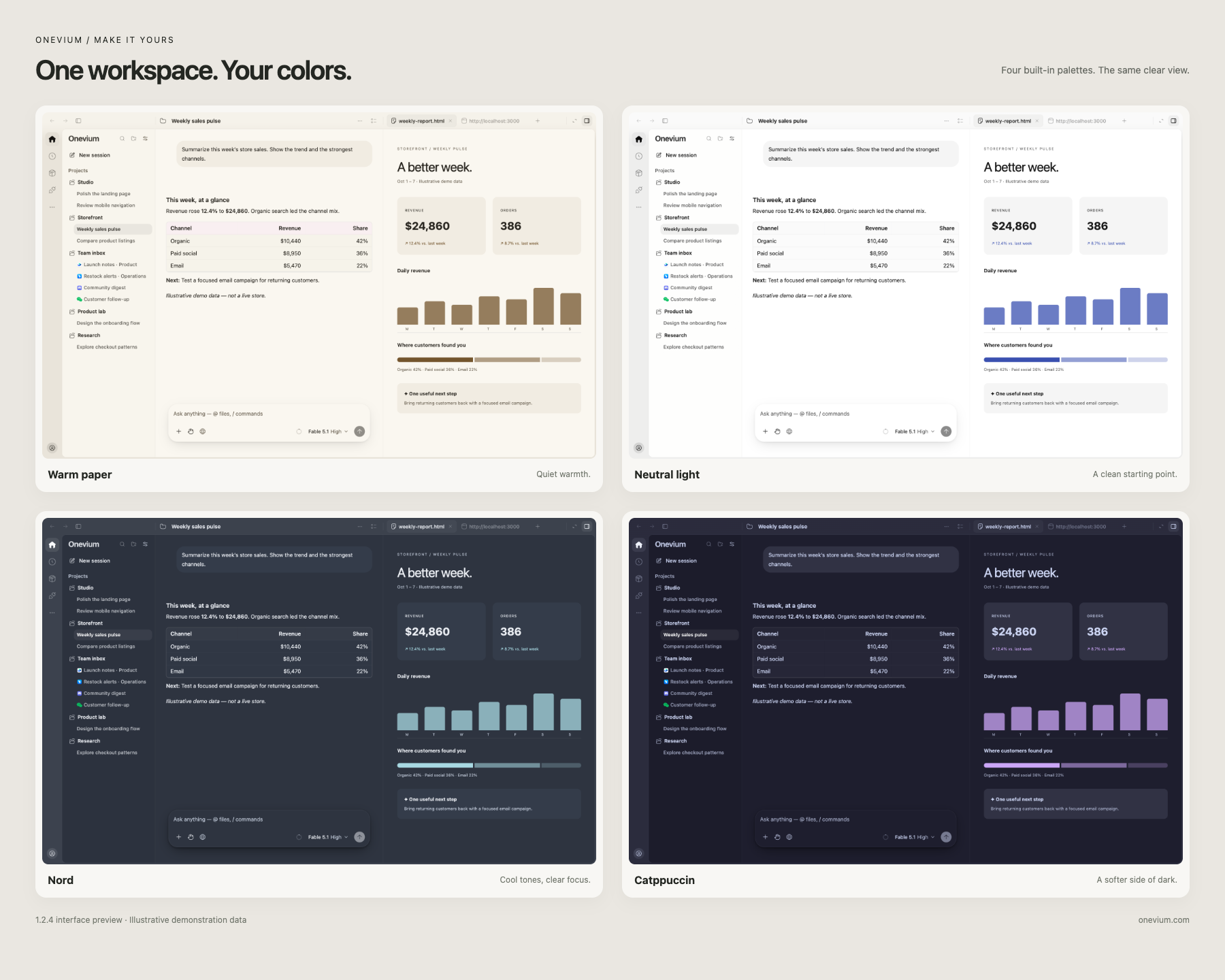
Warm paper, Neutral light, Nord, or Catppuccin: keep the sidebar, conversation, and preview in tune. Here is the same synthetic report in four built-in palettes.
Open it. Finish one small task.
Install Onevium, complete account sign-in or license activation, and connect an available model service.
Choose a project directory and create a conversation.
Give it one concrete goal: “Build a clear product page for this project, show me the preview, and list the files you changed.”
Inspect the results and file changes, then refine them. Add a Skill when you want to reuse the process.
This repository contains product information, demo assets, public installation helpers, and Release installers. It does not contain the application's source code. See Releases for the changes in each published version.